Guía de trucos
Battlefield 6 Cheat Setup and Requirements
Battlefield 6 Hacks needs TPM, Secure Boot, HVCI and Core Isolation turned on. Here is how to check each one on Windows 10 or 11.
Check Secure Boot
Most setup problems come down to the same thing: one of the required Windows settings is off. The product page lists these requirements. If you have not bought yet, read our buying guide for what is included after checkout.
- Windows 10 or Windows 11
- Intel or AMD processor
- HVCI on
- Core Isolation on
- TPM on
- Secure Boot on
Here is how to check each one. The exact wording of menus can differ a little between Windows versions and PC makers.
- Press the Windows key and R together, type
msinfo32and press Enter. - On the System Summary page, look for Secure Boot State.
- If it says On, you are done. If it says Off or Unsupported, you will need to look at your BIOS or UEFI settings.
Also look at BIOS Mode on the same screen. If it says UEFI, your machine can use Secure Boot. If it says Legacy, enabling Secure Boot may require changes to how your system disk is set up, so take care and back up anything important first.
Check TPM
- Press Windows and R, type
tpm.mscand press Enter. - The window should show that the TPM is ready for use.
- If it says a compatible TPM cannot be found, it may be disabled in your BIOS or UEFI. On many boards it appears as TPM, fTPM (AMD) or PTT (Intel).
Check Core Isolation and HVCI
HVCI is the feature Windows labels Memory integrity, and it sits inside Core Isolation.
- Open Windows Security.
- Go to Device security.
- Click Core isolation details.
- Make sure Memory integrity is on. Restart if Windows asks you to.
If Windows reports that an incompatible driver is blocking memory integrity, you will need to deal with that driver first. Updating it from the maker or removing it, if you no longer need it, are the usual routes.
After the settings are right
Once all four are on, the usual flow is:
- Purchase your plan (see the pricing guide if you are unsure which plan fits).
- Get your current loader access after purchase.
- Follow the steps in the documentation.
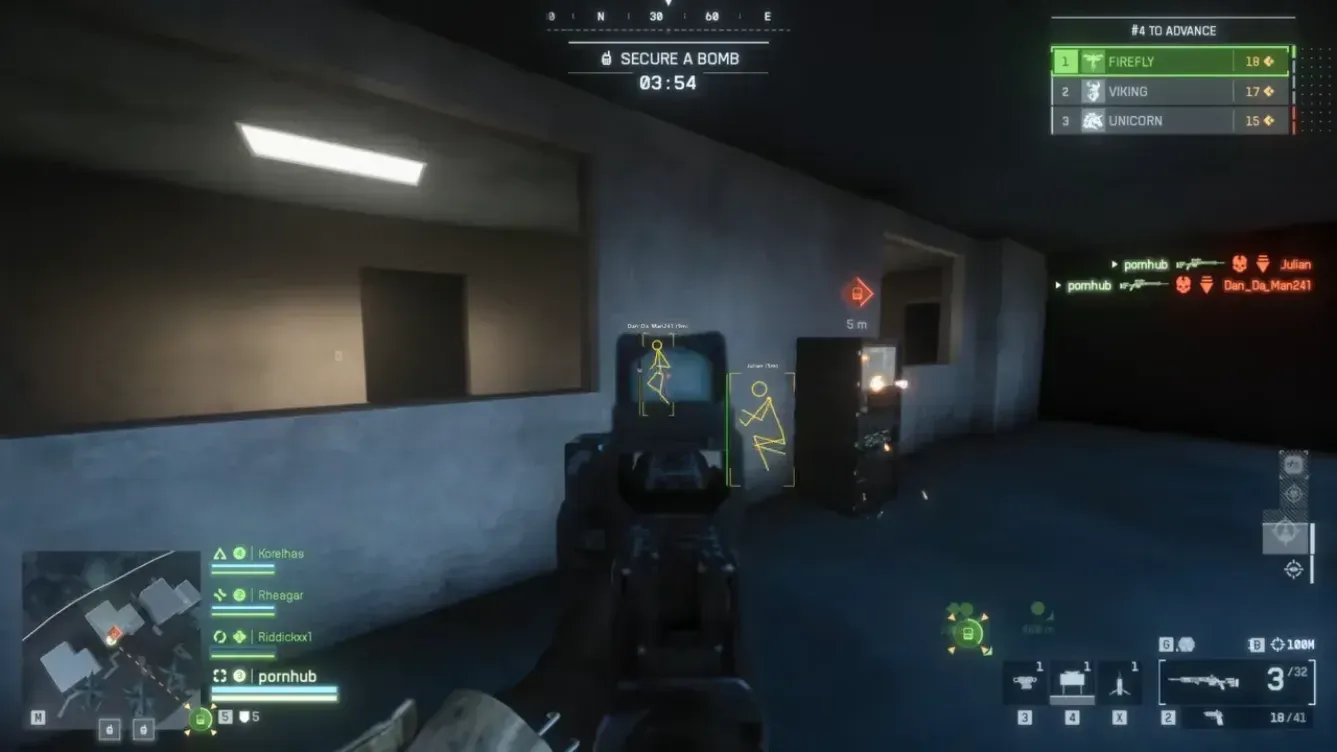
- Open the menu in game. The default menu bind is shown as INSERT in the menu preview, and you can change it in the Misc options.
- Configure ESP and aimbot before you queue.
- Use the unload bind when you are finished.
If something still is not working
Go back through the four settings and recheck each one, since this is the most common cause. If it still fails, check the status page, then open a ticket on the support page or ask in the Discord linked on the site. Tell them your Windows version, what you see on screen and what you already tried. That saves everyone time.
Changing BIOS or security settings can affect how your PC behaves, so take your time and note what you changed. The product page has the current requirements.